Hi Friends,
Here is step by step Tutorial for ListView FormControl. During this tutorial we create a separate Form (just for testing this tutorial).
ListView Control helps you when you want to select multiple records from a list of records see below image

Follow this steps
Step 1: Create a new Form and name it “_ListView”
In design Node, Add a new Control called ListView and name it as “LeftListView” as shown below.

By default -AutoDeclaration property of the ListView will be “Yes”.(Because you have to access this in your code for insert/Access/Delete items from ListView)
Now lets learn some important properties of the listView. Change the View type property from “Icon” to “Report” s shown below.

Save the form and now let’s add coulmns to the list view. Since we have set the autodeclaration property of the LeftListView to “yes”, we can use this control inside the code.
Step 2: Override the init() method of the Example_ListView form and add the below lines of code to add columns to the list View as shown below
LeftListView.addColumn(1,new FormListColumn(‘List of customes’,1, 200));
Refer to the image below for the same.

Step 3: Now let us insert items to the list.
Override the run() method of the form and insert the below lines of code. We are actually fetching all the customer names from the standard CustTable and adding the same to the list.
public void run()
{
CustTable custTable;
;
super();
// Adding items to the list
while select Name from custTable
{
LeftListView.add(custTable.Name);
}
}
Below image is the same for the reference

Now let’s see how the items looks like in our list.
Open the Example_ListView form by using shortcut key “Ctrl + O “
Below image is for your reference.

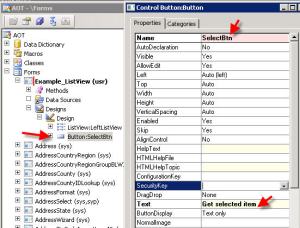
Step 4: Add a new button to the form by Right clicking the design >> Chose Button control. Name the button as SelectBtn and Text property set to “Get selected item” as shown below
Override the clicked() method of the nelwy created button and add the below lines of code. This code will help you to show the selected item by the user in the list upon clicking on the button in the infolog
void clicked()
{
FormListItem item;
int i;
;
super();
i = LeftListView.getNextItem(FormListNext::Selected);
while (i != -1)
{
item = LeftListView.getItem(i);
info (item.text());
i = LeftListView.getNextItem(FormListNext::Selected,i);
}
}
Below is the image for the reference

Note: By default the Listview will not allow the multiple selection of items on the list. To allow users multiple selection, go to the LeftListView control properties and change the property of MultipleSelection from “No” to “Yes” as shown below

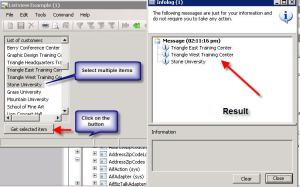
Step 5: Select multiple items in the list[By using shift key] and click on the button to view the selected items by the user in the infolog. Below is the result.
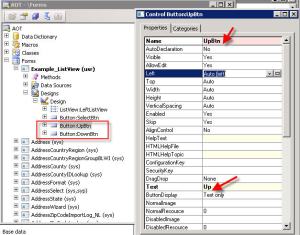
Step 6: Move up and down the items [Arrange] in the list View. To do this add 2 new buttons to the Form. Name them as UpBtn and DownBtn . Provide the text property on the buttons as “Up” and “Down”
On the upBtn >> Overide the Clicked method and paste the below lines of code to move the item up [Select the item in the listview and use Up arrow to move the item upwards]
void clicked()
{
int i = LeftListView.getNextItem(FormListNext::Selected);
LeftListView.moveItem(i, i-1);
}
Similarly on the DownBtn >> Override the clicked method and paste the below code
void clicked()
{
int i = LeftListView.getNextItem(FormListNext::Selected);
LeftListView.moveItem(i, i+1);
}
Moveitem is the method which will help to move or arrange the items in the list through index. If we decrement the index, the item will be moved up and on incrementing the item will move down.
Step 6: Finally, how to move items from one list to another. To do this let’s create one more list in the form by right clicking the desgins and add new ListViewControl . Name the newly created ListView control to “BottomListView” and change the ViewType property of the listView to Report. [Refer to Step 1]
Below is the screen shot for your reference.

Step 7: Now we need to add columns to this newly created list which we did in the Step 2.
Modify the init() method of the form to add the columns to the
BottonListView
BottomListView.addColumn(1,new FormListColumn(‘Moved customers’,1, 200));
Step 8: Lets add one more button which should help to move item from the LeftListView to ButtonListView.
Create a new button and name it as “MoveBtn” and give the text property as “Move Items” as shown below.

Step 9: Override the clicked() method of the MoveBtn and add the below lines of code to move the items from one list to another.
Business logic : Get the selected item from the LeftlistView. Add to the another list i.e BottomListView. Delete the item/items from the LeftListView.
void clicked()
{
FormListItem item;
int i;
;
super();
i = LeftListView.getNextItem(FormListNext::Selected);
while (i != -1)
{
item = LeftListView.getItem(i);
BottomListView.addItem(item); //Add items to the BottomListView
LeftListView.delete(i); // Delete the selected item from the LeftListView
i = LeftListView.getNextItem(FormListNext::Selected,i);
}
}
Here is step by step Tutorial for ListView FormControl. During this tutorial we create a separate Form (just for testing this tutorial).
ListView Control helps you when you want to select multiple records from a list of records see below image

Follow this steps
Step 1: Create a new Form and name it “_ListView”
In design Node, Add a new Control called ListView and name it as “LeftListView” as shown below.
By default -AutoDeclaration property of the ListView will be “Yes”.(Because you have to access this in your code for insert/Access/Delete items from ListView)
Now lets learn some important properties of the listView. Change the View type property from “Icon” to “Report” s shown below.
Save the form and now let’s add coulmns to the list view. Since we have set the autodeclaration property of the LeftListView to “yes”, we can use this control inside the code.
Step 2: Override the init() method of the Example_ListView form and add the below lines of code to add columns to the list View as shown below
LeftListView.addColumn(1,new FormListColumn(‘List of customes’,1, 200));
Refer to the image below for the same.
Step 3: Now let us insert items to the list.
Override the run() method of the form and insert the below lines of code. We are actually fetching all the customer names from the standard CustTable and adding the same to the list.
public void run()
{
CustTable custTable;
;
super();
// Adding items to the list
while select Name from custTable
{
LeftListView.add(custTable.Name);
}
}
Below image is the same for the reference
Now let’s see how the items looks like in our list.
Open the Example_ListView form by using shortcut key “Ctrl + O “
Below image is for your reference.
Step 4: Add a new button to the form by Right clicking the design >> Chose Button control. Name the button as SelectBtn and Text property set to “Get selected item” as shown below
Override the clicked() method of the nelwy created button and add the below lines of code. This code will help you to show the selected item by the user in the list upon clicking on the button in the infolog
void clicked()
{
FormListItem item;
int i;
;
super();
i = LeftListView.getNextItem(FormListNext::Selected);
while (i != -1)
{
item = LeftListView.getItem(i);
info (item.text());
i = LeftListView.getNextItem(FormListNext::Selected,i);
}
}
Below is the image for the reference
Note: By default the Listview will not allow the multiple selection of items on the list. To allow users multiple selection, go to the LeftListView control properties and change the property of MultipleSelection from “No” to “Yes” as shown below
Step 5: Select multiple items in the list[By using shift key] and click on the button to view the selected items by the user in the infolog. Below is the result.
Step 6: Move up and down the items [Arrange] in the list View. To do this add 2 new buttons to the Form. Name them as UpBtn and DownBtn . Provide the text property on the buttons as “Up” and “Down”
On the upBtn >> Overide the Clicked method and paste the below lines of code to move the item up [Select the item in the listview and use Up arrow to move the item upwards]
void clicked()
{
int i = LeftListView.getNextItem(FormListNext::Selected);
LeftListView.moveItem(i, i-1);
}
Similarly on the DownBtn >> Override the clicked method and paste the below code
void clicked()
{
int i = LeftListView.getNextItem(FormListNext::Selected);
LeftListView.moveItem(i, i+1);
}
Moveitem is the method which will help to move or arrange the items in the list through index. If we decrement the index, the item will be moved up and on incrementing the item will move down.
Step 6: Finally, how to move items from one list to another. To do this let’s create one more list in the form by right clicking the desgins and add new ListViewControl . Name the newly created ListView control to “BottomListView” and change the ViewType property of the listView to Report. [Refer to Step 1]
Below is the screen shot for your reference.
Step 7: Now we need to add columns to this newly created list which we did in the Step 2.
Modify the init() method of the form to add the columns to the
BottonListView
BottomListView.addColumn(1,new FormListColumn(‘Moved customers’,1, 200));
Step 8: Lets add one more button which should help to move item from the LeftListView to ButtonListView.
Create a new button and name it as “MoveBtn” and give the text property as “Move Items” as shown below.
Step 9: Override the clicked() method of the MoveBtn and add the below lines of code to move the items from one list to another.
Business logic : Get the selected item from the LeftlistView. Add to the another list i.e BottomListView. Delete the item/items from the LeftListView.
void clicked()
{
FormListItem item;
int i;
;
super();
i = LeftListView.getNextItem(FormListNext::Selected);
while (i != -1)
{
item = LeftListView.getItem(i);
BottomListView.addItem(item); //Add items to the BottomListView
LeftListView.delete(i); // Delete the selected item from the LeftListView
i = LeftListView.getNextItem(FormListNext::Selected,i);
}
}
Comments
Post a Comment